|
поискавой системы для электроныых деталей |
|
|
поискавой системы для электроныых деталей |
|
TC_LAB датащи(PDF) 17 Page - Wavelength Electronics, Inc. |
|
|
|||||||||||||||||||||||||||||
TC_LAB датащи(HTML) 17 Page - Wavelength Electronics, Inc. |
|
|
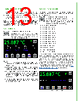
17 / 29 page  17 INTELLITUNE CONTINUOUSLY OPTIMIZES Once a system is run through the IntelliTune process, the PID coefficents are adjusted as the setpoint, tune mode, or bias current is changed. Adjustments are made even if bias current changes or setpoint approaches ambient temperature. The IntelliTune setpoint does not need to match the system setpoint if the system setpoint is very high or very low. Run IntelliTune at a setpoint about 5ºC away from ambient. IntelliTune stops if the sensor is changed or the tuning mode is set to Manual Tuning. During an IntelliTune process, the current limits are set to 10% of the initial values. The limit icon glows red frequently. Current limits are restored after the scan is complete. See Application Note AN-TC13 for an in-depth exploration of IntelliTune. SAVE OR RECALL SETTINGS Press to access the Save/Recall Screen. Under Save Settings, press the blue text to toggle through the Profile options, select one, and then press the Save icon. The following operations settings are saved: • Tune Mode • Scan Start Temperature • Beeper Status • Scan Temperature Step Size • Cable Resistance • Scan Stop Temperature • Current Limit, Negative • Scan Settling Period • Current Limit, Positive • Sensor • Display Brightness • Temperature Setpoint • Proportional Gain • High Temperature Limit • Integrator Time Constant • Low Temperature Limit • Differentiator Time Constant • Tolerance Figure 25. Save / Recall Screen SETTINGS SCREEN 1. Press to access the Settings Screen. 2. Press the Display value to cycle through the display and control units available - Celcius (°C), Farenheit (°F), Kelvin (K) or Resistance. 3. Press the Tolerance value and turn the adjustment knob until the desired tolerance window is displayed. The target symbol will show on the front panel when the actual temperature is within the window defined by setpoint ± the tolerance. The minimum tolerance is 0.01. 4. Move the slider bar on the touchscreen to change the Display Brightness. 5. Press the blue text to toggle the Beeper on-off setting. Figure 26. Settings Screen LOCK OR UNLOCK SETTINGS (OPTIONAL) Settings are not locked. This is the default. Critical values set with the Adjustment knob can be locked. Press to lock the settings. Settings are locked. Press to unlock the settings. Settings are locked and password protected. Locked settings that are password protected can only be locked and unlocked using a remote computer. |
|
ссылки URL |
| Вашему бизинису помогли Аллдатащит? [ DONATE ] |
Что такое Аллдатащит | реклама | контакт | Конфиденциальность | Ссылка на техническое описание | обмен ссыками | поиск по производителю All Rights Reserved©Alldatasheet.com |
| Russian : Alldatasheetru.com | Korean : Alldatasheet.co.kr | Spanish : Alldatasheet.es | French : Alldatasheet.fr | Italian : Alldatasheetit.com Portuguese : Alldatasheetpt.com | Polish : Alldatasheet.pl | Vietnamese : Alldatasheet.vn Indian : Alldatasheet.in | Mexican : Alldatasheet.com.mx | British : Alldatasheet.co.uk | New Zealand : Alldatasheet.co.nz |
|
Family Site : ic2ic.com |
icmetro.com |
 Russian ▼
 English
 Chinese
 German
 Japanese
 Russian
 Korean
 Spanish
 French
 Italian
 Portuguese
 Polish
 Vietnamese
 Indian
 Mexican
 British
 New Zealand